
Claiming your business in ChatGPT is free, takes about 20 to 30 minutes, and gives you a say in what ChatGPT shows about you. It does not make ChatGPT recommend your brand or products more often.
Here’s how to claim your business, verify your identity, share access, and navigate roadblocks.
The quick version:
- Sign in to ChatGPT with an account your business controls (not your personal one).
- Open Business Hub, search for your business, and start a claim.
- Prove the business is yours with one of the methods ChatGPT offers you: business phone, business email, a website DNS record, or Shopify.
- Wait for OpenAI to approve the claim.
- Verify your own identity with Persona, using a government-issued ID. Until this is approved, you can't edit your profile or see any data.
- Invite teammates and your agency so access doesn’t depend on one person.
Business Hub launched in beta on November 10, 2026, so things will change. Screens, options, and rules might differ from the screenshots and info here, depending on when you dive in. Refer to OpenAI's official setup guide if anything seems off.
What follows is a detailed version, then troubleshooting tips, and after that some helpful context about what even is Business in ChatGPT and an FAQ. Peep the TOC on the right →
How to claim and verify your business in ChatGPT
There are three gates you must pass through, in this order:
- Claim the profile
- Prove the business is yours
- Verify your identity with Persona
You can't do anything useful until all three are approved. Here’s a step-by-step breakdown of how to get through each one.
But first:
Before you start claiming your business
Have this stuff on hand so you’re not scrambling halfway through:
- The right ChatGPT account (a business one, not your personal one)
- At least one way to prove the business is yours: access to the business phone line, the business email inbox, your website's DNS settings (or the person who manages them), or your Shopify login
- Your government-issued ID (driver's license or passport) and a smartphone or computer with a camera
- Your business's official details: legal name, "doing business as" name if different, physical address (no P.O. boxes), registered address if different, and any registration or tax ID number
- Your delivery and return policies, if you sell products. You may be asked about them during setup.
Tip: Put your official business information into a note so you can just copy from it during verification. Typos are time-wasters!
Step 1: Sign in and find your business
- Sign in to ChatGPT with a business-owned account.
- Open Business Hub from the sidebar, or go to chatgpt.com/business-hub.
- Type your business name into the Search business field.
- Pick the listing that matches. Each result shows the name above the street address, so check the address, especially if you have multiple locations.
- Not listed? Online businesses will see an option to create a new profile. Local businesses can't create one yet.
If OpenAI emailed you a claim invitation, just open the link in the email and sign in with the email address that received it.
Step 2: Confirm the account and start your claim
ChatGPT shows which account will manage the profile. Stop and check this. If it shows your personal account, sign out and start over with the right one. Changing it later is much harder. If it’s correct, click Continue.
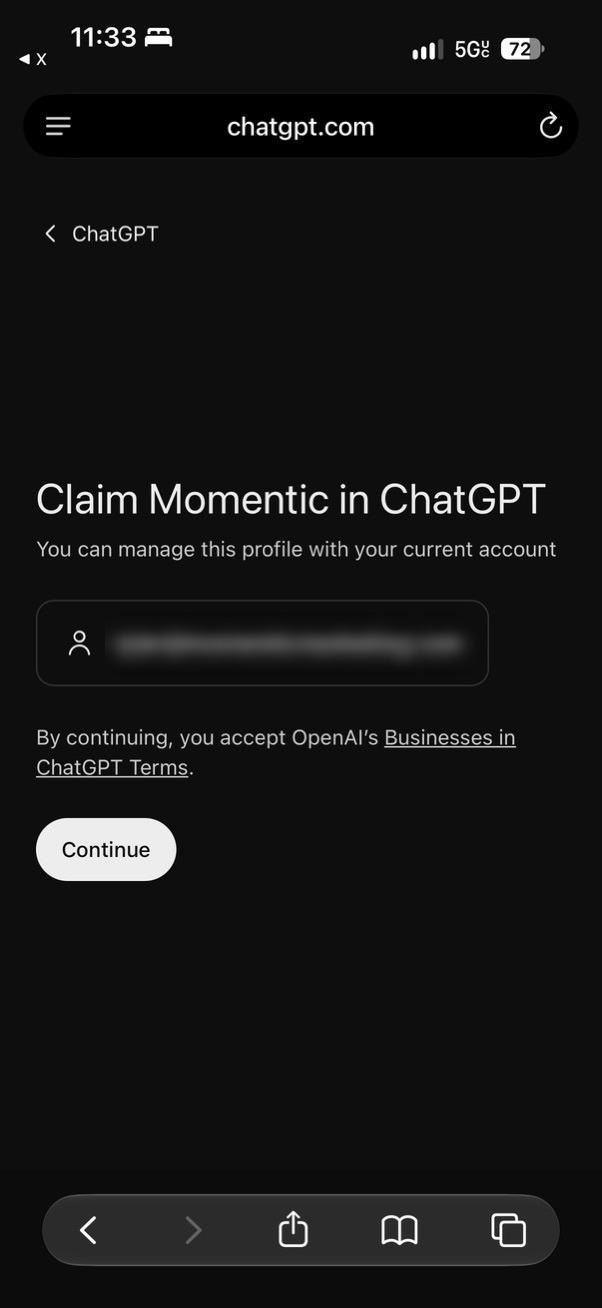
If you're creating a new profile, they might askhow customers reach you (a physical location, a website, or a service) and to fill in a category, a short description, optional contact details, and delivery and return policies. Pick what's true for your business. These answers appear on your profile, and some questions might not apply to your business. Just choose the option that’s most accurate, and check your profile preview to make sure nothing looks misleading.
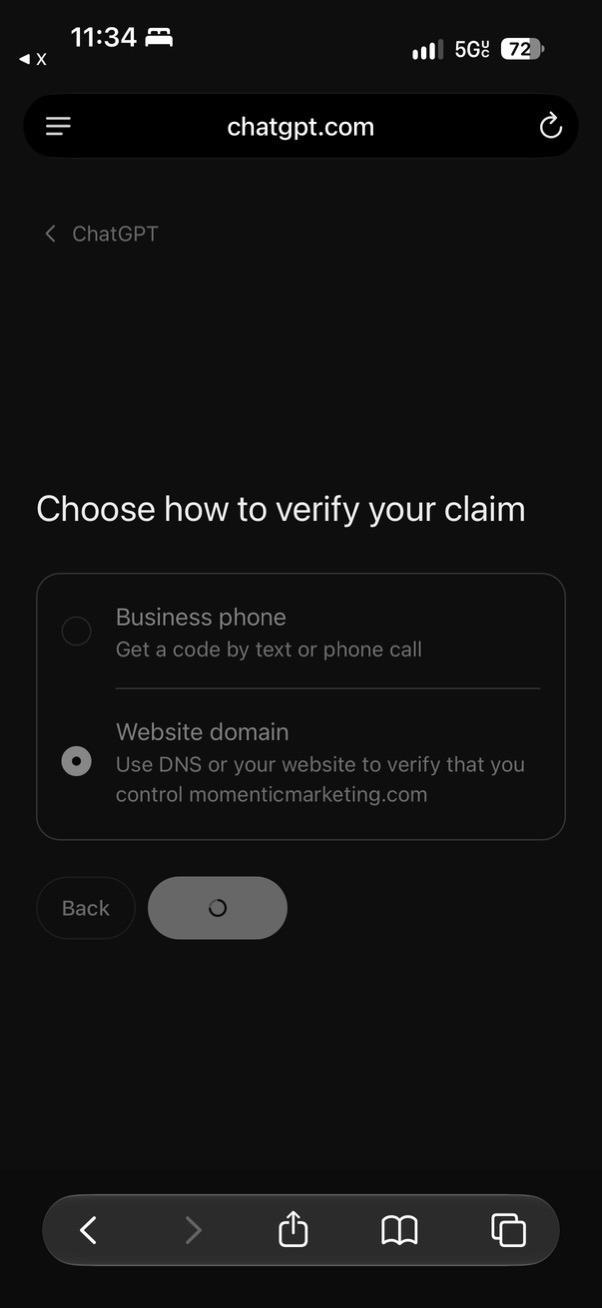
Step 3: Choose how to prove the business is yours
ChatGPT only shows the methods available for your business. You probably won't see all four.
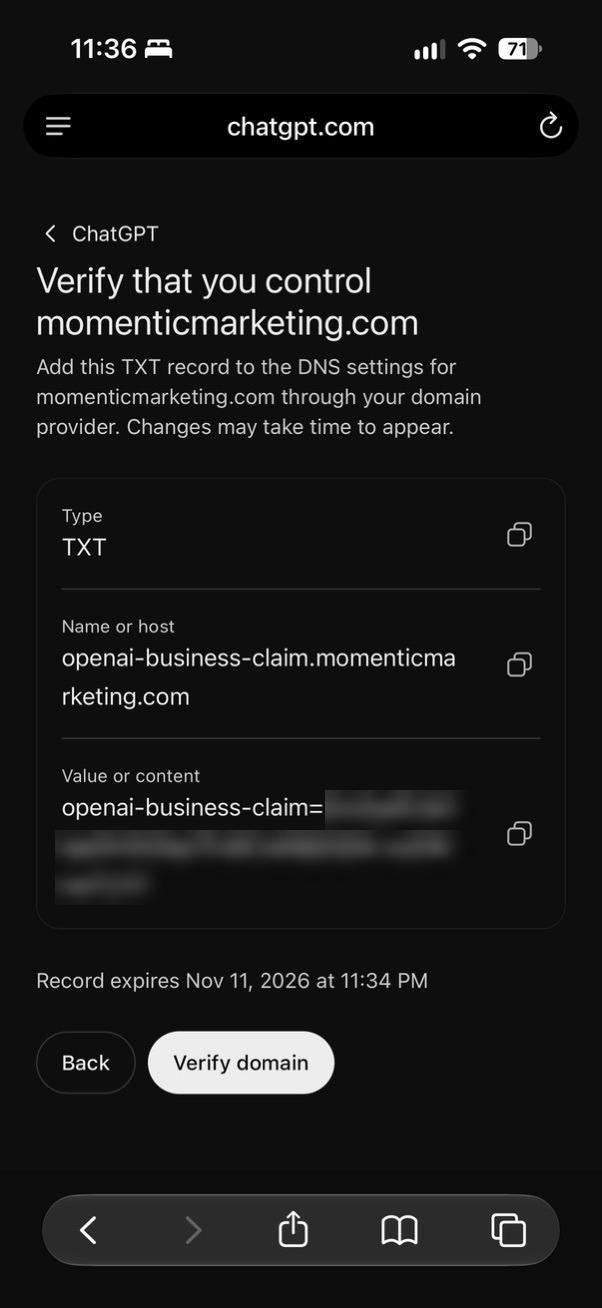
Step 4: If you chose Website domain, add the TXT record
ChatGPT shows three values: Type (TXT), Name or host, and Value or content. Use the copy icons next to each one instead of retyping them.
- Log in to wherever your domain's DNS is managed.
- Add a new TXT record and paste in the name and value exactly as shown.
- Save it, go back to ChatGPT, and click Verify domain.
If someone else manages your DNS, send them all three values, plus the tips below.
Tips:
- The record expires. An expiration date and time appear under the record. If you miss the deadline you'll need a new one.
- The "host" field trips people up. The name looks like: openai-business-claim.yourdomain.com. Many DNS providers add your domain automatically, so you'd enter only openai-business-claim. If you enter the full version, you may end up with openai-business-claim.yourdomain.com.yourdomain.com, and verification will fail.
- DNS can take time. Changes sometimes show up within minutes and sometimes take a few hours. If Verify doesn't work right away, wait and try again.
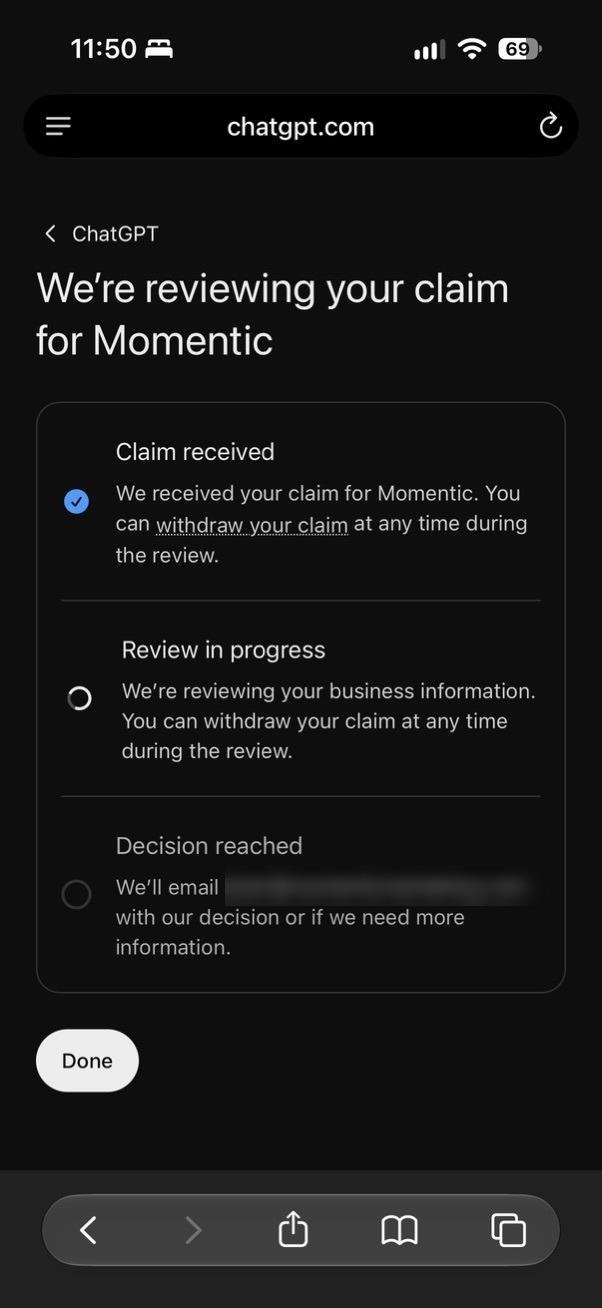
Step 5: Wait for claim approval
OpenAI reviews your claim and emails its decision, or a request for more information, to the account's email address. You can withdraw the claim at any time while it's under review.
Approval can come within minutes, but OpenAI says review times vary. If you claimed the wrong listing or used the wrong account, withdraw the claim and start again.
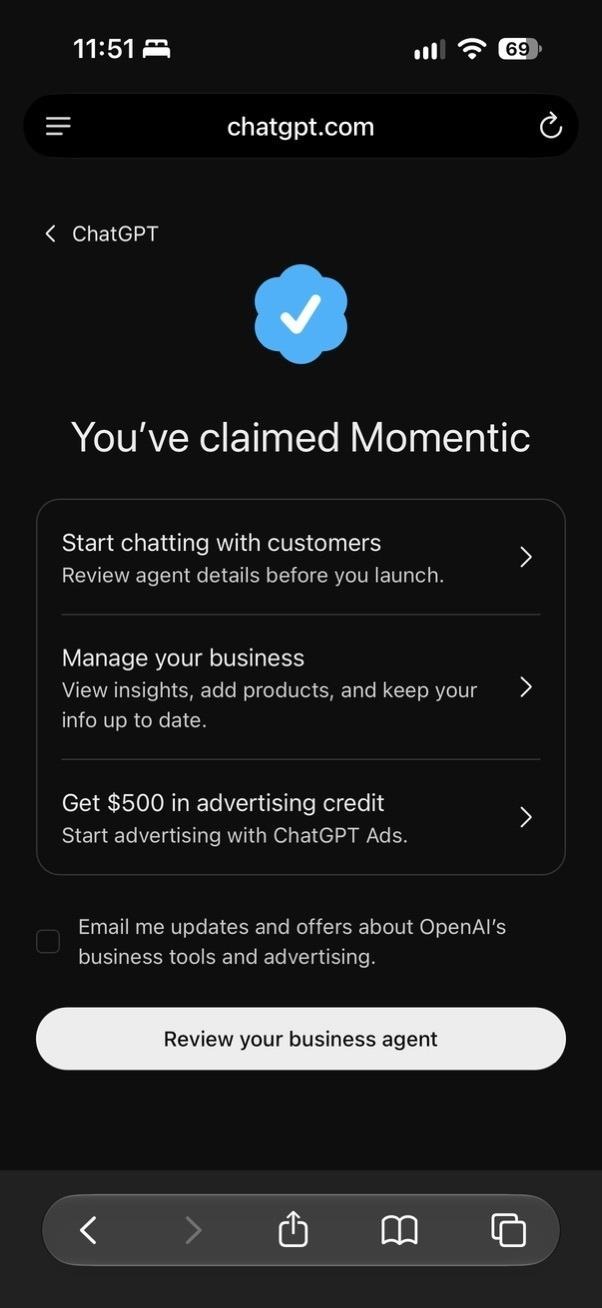
Step 6: Claim approved. Skip the upsells. Don't be fooled - you're not done yet.
When your claim is approved, you'll see a confirmation screen with a few options: start chatting with customers (the Business Agent), manage your business, and an offer for ChatGPT Ads credit. There may also be an email opt-in checkbox and an offer to upgrade your ChatGPT plan.
None of these are required. Ads credit and plan upgrades are separate products with their own terms. The Business Agent is optional and only available to some businesses. Your next required step is identity verification.
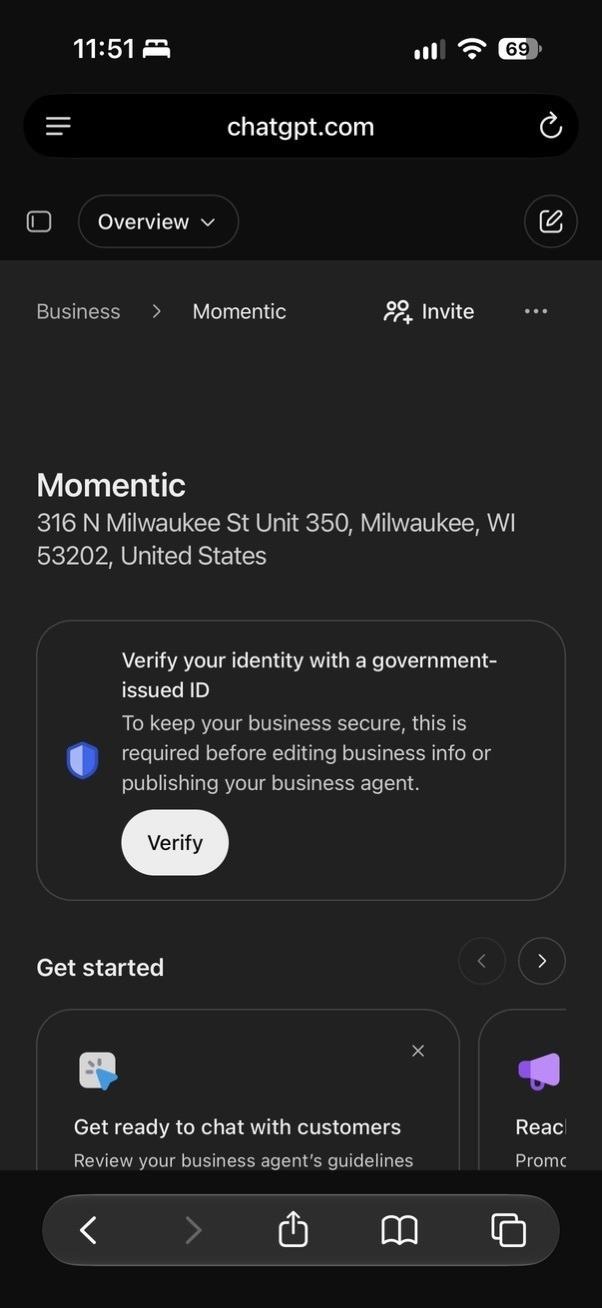
Step 7: Verify your identity with Persona
The claim screen above looks like the finish line. It isn't. You still have to verify your identity with a government-issued ID, which is required before you can edit business info, view insights, or publish an agent.
- Open Business, select your profile, and look for the prompt to Verify your identity with Persona on the overview page.
- Select Verify (or Verify with Persona), then Continue to Persona.
- Follow Persona's prompts. Have your ID and your business's official details ready.
- Double-check everything before you submit. If you created a brand-new profile, approval publishes it automatically, and a published profile can't be deleted or hidden.
- Wait for OpenAI's email. You’re still not at the finish line: submitting isn't the same as being approved.
You're finally done when:
- Your claim is approved,
- Persona has approved your identity,
- A blue verified check appears on your profile, and
- At least two people (meaning one other person besides you) have admin access.
Next up: making your profile accurate and useful. That'll be covered in another guide.
Troubleshooting
Most hang-ups boil down to one of three things: the wrong account, a detail that doesn't match official records, or waiting on review.
Still stuck? Contact OpenAI Support.
Inviting teammates and agencies
Add at least one more admin as soon as your claim is approved. It protects you against turnover, vacations, and lost logins. Your future self will thank you.
How to invite someone
- Open Business (or Business Hub) and select your business.
- Select Invite in the upper-right corner of the overview page. You'll see it next to your business name.
- In the Invite business admins window, enter the person's email address and send the invite.
- The person accepts using their own ChatGPT account. The invite will likely be tied to the email address you entered.
Tell your agency which email you invited. Better yet, ask them in advance which email address their ChatGPT account uses, so the invite goes to the right place.
Pitfalls to avoid
- Never share a login. Each person should use their own ChatGPT account. Shared passwords defeat the purpose of the admin list and weaken security.
- Don't forward your claim invitation. If OpenAI emailed you a personal claim link, it's meant for you. OpenAI specifically says not to forward it as a way to give someone access. Claim first, then invite people according to the rules.
- Workspace accounts can block outside invites. If the business was claimed from a ChatGPT Business or Enterprise workspace, invitees may need to be members of that workspace. If an agency invitation is blocked, contact OpenAI Support to ask about your options.
- Each brand and location is separate. Inviting someone to your main brand doesn't give them access to other brands or individual locations. Repeat the invite for each profile they need.
- Keep a record. Record who has access to each profile, and review the list when employees or agencies change.
What's Business Hub in ChatGPT?
Business Hub is OpenAI's free dashboard for businesses that appear in ChatGPT. Once you claim and verify your business there, you can do four things:
- Correct your business details. Update your website URL, description, category, logo, and (if you sell things) delivery and return policies. ChatGPT might use these details when people ask about you, so make sure they’re right! Also make sure the same details are on your website.
- Share your products. Retailers can connect a product feed with prices and availability, including through Shopify.
- See basic data from ChatGPT. Mentions, website clicks, and "discovery topics" (the themes of conversations where your business came up) over the last 7 or 28 days.
- Build a Business Agent (optional, limited). A chatbot that answers customer questions about your products and policies inside ChatGPT. For now, only eligible US ecommerce and online service businesses can create one.
OpenAI's official name for the whole program is "Businesses in ChatGPT." Business Hub is the dashboard where you manage it. Some screens just say ‘Business’.
It’s essentially like a Google Business Profile/Google Merchant Center mashup, but for ChatGPT.
Think of ChatGPT like a reporter writing about your business without interviewing you. It pieces a story together from your website, other articles, reviews, Reddit threads, and whatever else it finds. Claiming your profile is your only chance to go on the record. ChatGPT still writes what it wants, but at least it has some facts straight from you, and you get a peek at how popular the story is.
Two things it isn’t:
- It's not a way to boost visibility. OpenAI states that claiming your business "does not guarantee higher placement or sales."
- It's not linked to advertising. Ads in ChatGPT are a separate product. Paying for them doesn't change ChatGPT's regular answers. You also don't need to buy ads to claim your business.
How does Business Hub compare to similar platforms?
Business Hub is closest to a business listing (like Google Business Profile), with a light product feed (like Google Merchant Center) and a small bit of reporting (nowhere near Search Console). It would be amazing to have "Search Console for ChatGPT" but this is mostly a listing.
What Business Hub offers that other platforms don't
- Online-only businesses are welcome. Online-only businesses are ineligible for a Google Business Profile. ChatGPT accepts them. A software company, an online store, a publisher, or a consultant without a storefront can all have a verified ChatGPT profile. This is big!
- Data straight from ChatGPT. Until now, the only way to see how a brand shows up in ChatGPT was by using third-party tools that run sample prompts and record the answers. Business Hub is the first data from OpenAI itself. It's limited, but it's primary.
- A Business Agent. No search engine lets you put your own chatbot directly in front of users while they research. ChatGPT does, for some (for now, only eligible US ecommerce and online service businesses can create a Business Agent).
An important detail to understand about the data: for an online business, ChatGPT only counts a "mention" when an answer references your website. If ChatGPT names your brand without your website, that doesn't count. Mentions are probably undercounted as a result.
Who is it for, and who's eligible?
If you own a business or are authorized to represent it, and ChatGPT is available where you operate, you can probably claim it. You don't need a paid ChatGPT plan or an ads account - a free ChatGPT account is enough.
How it works depends on what kind of business you have:
- Online businesses (ecommerce stores, software, online services, publishers) can claim an existing profile or create a new one if they aren't listed.
- Local stores and restaurants can currently only claim an existing US listing. Early testers who tried to create a new physical-location profile got put on a waitlist.
- Service businesses might see a "Coming soon" label on the service option during the beta.
- Business Agents are for only for ecommerce or online service businesses in the US that have a website and are in an industry OpenAI's Business Agents Policy allows.
OpenAI may decline or delay some categories while it builds safeguards, with extra scrutiny likely in sensitive industries like healthcare and finance.
Why use an account that belongs to the business?
Whoever claims the business becomes its admin. If you use your personal ChatGPT login and change jobs, nobody will have fun sorting that out.
So before you start:
- Don't use your personal ChatGPT account, or one tied to a personal Gmail or other non-business email address.
- Do sign in with an account on an email address the business owns and controls, ideally one that will outlast any single employee.
- Do add at least one more admin right after you're approved (see "How to invite teammates and agencies" below). Two admins means no single departure can lock the business out.
- If your company uses ChatGPT Business or Enterprise and you claim from your company’s workspace, OpenAI says people you invite later may need to be members of that workspace. That could block an outside agency from getting access. If it does, contact OpenAI Support about your options. Hopefully this is something that will get smoothed out in beta.
What's Persona?
Persona is an independent identity-verification company that OpenAI uses to confirm a real, authorized person is behind each business profile. It's the step where you use your camera to scan your ID and confirm you're the person on it.
Helpful to know:
- Verifying your identity is a separate step from claiming the business. Getting your claim approved isn't the finish line. You can't edit the business profile, see insights, connect a product feed, or build an agent until Persona verifies you as an individual.
- You'll leave ChatGPT briefly. Clicking "Continue to Persona" hands you off to Persona's site. It might show a QR code so you can finish on your phone. You'll need camera access, but thankfully no app download.
- It verifies a person and their relationship to the company. Persona checks your ID and might also ask for business registration details and proof that you're allowed to represent the business.
- The blue check comes from the verification step. OpenAI's help guide says the verified badge appears after Persona approves you, not when your claim is approved.
What's DNS, and how does it work for verification?
DNS is the behind-the-scenes settings panel for your website's domain name. It lives wherever your domain is managed: a registrar or host like GoDaddy, Namecheap, Cloudflare, Squarespace, or Wix.
If you verify with your website domain, ChatGPT gives you a short line of text called a TXT record. Adding it to your DNS settings proves you control the domain, like proving you own your car by flashing the keys. It doesn't change your website or email in any way. You can remove it after you're verified, but leaving it is harmless.
If you've never logged into your DNS settings, that's normal. If this is the method you’re using, find out who manages your domain (often IT, your web developer, or your agency) and give them a heads up before you start the claim process, so you can send them the record right away.
ChatGPT Business Hub setup FAQ
Does claiming a business on ChatGPT cost anything?
No. Claiming and managing your business is free. The ads credit and plan upgrade offers you may see during setup are separate, optional products.
Do I need a paid ChatGPT plan?
No. Any ChatGPT account works, including a free one.
Will claiming my business help me show up more in ChatGPT?
Not directly. OpenAI says claiming doesn't guarantee higher placement, and ads don't influence ChatGPT's independent answers. What claiming does is make sure the details ChatGPT has from you are accurate. ChatGPT still pulls from your website and other sources, so keeping those accurate and consistent is important.
If I don't claim my business, will ChatGPT still mention it?
Yes. ChatGPT talks about businesses whether or not they've claimed a profile. Claiming gives you a voice in that, plus data you can't get anywhere else.
Is Business Hub the same as ChatGPT Business or ChatGPT Enterprise?
No, and the names are confusing. ChatGPT Business and Enterprise are paid plans for teams that use ChatGPT at work. Business Hub (aka "Businesses in ChatGPT") is about how your company appears to users in ChatGPT.
Do I have to publish a Business Agent or run ads in ChatGPT?
No. Claiming, agents, and advertising are all separate.
How long does approval take?
OpenAI doesn't give a timeline. Claims can be approved within minutes, but some take longer, and identity verification is a separate review. If you use DNS verification, allow extra time for the record to take effect. Plan for about 20 to 30 minutes of hands-on work, possibly spread across a couple of sessions.
Who should do this: the owner, a manager, or our agency?
Anyone authorized to represent the business can claim it, but the person who claims should be someone who will stay with the business, using a business-owned account. Persona verifies the identity of whoever goes through it, so an agency generally shouldn't claim on a client's behalf. It’s better to have someone at the business claim it, then invite the agency.
Do I need to claim each location separately?
Yes. Each brand and location is managed separately, and claiming your main brand doesn't claim your locations. There's no bulk or central management tool.
Can I undo a claim or delete my profile?
Sometimes. You can cancel a claim or Persona check that’s under review. Unpublished drafts can be deleted from the ••• menu on the profile's Overview page. But a published profile can't be deleted, unpublished, or hidden, even by OpenAI Support. Don’t publish a profile if you’re tired, distracted, rushed, or hungry!
What happens if the person who claimed our profile leaves the company?
If another admin exists, they keep access and can manage the profile. If no one else has access, you may need to go through Dispute ownership to get it back. This is why we recommend a business-owned account and at least two admins from day one.
A former employee or old agency already claimed our business. Now what?
Ask them to invite you as an admin first. That's the fastest route. If that's not possible, use Dispute ownership from the ••• menu on your profile and verify with Persona.
Will ChatGPT users see my personal information?
Your ID and personal details go to Persona for verification, not onto your ChatGPT Business profile. Your profile shows the business information you enter, such as your website, description, and contact details. Review the profile preview carefully before submitting, especially if you work from home.
Will OpenAI show me what people asked ChatGPT about my business?
No. Insights are grouped and anonymized. You'll see counts and broad themes, but never individual prompts or conversations.
My business isn't in the US. Can I still claim it?
Possibly. Claiming is available where ChatGPT is available, depending on your location and business type, but OpenAI hasn’t published a country list. We do know that Business Agents are US-only for now.
Does my profile replace what ChatGPT finds on my website?
No. OpenAI says ChatGPT may also use other sources when answering questions about your business. Your profile is one source among many. If your website, social profiles, or directory listings are outdated, fix them so all your business details are consistent (do this whether or not you claim your profile).
<div class="post-note-cute">Stuck on a step, or wondering what to do after you’re claimed? Momentic helps businesses show up accurately in ChatGPT and other AI search tools. Reach out and we’ll point you in the right direction.</div>
Sources reviewed
These are the resources I used as of November 12, 2026 when this was first published:
- OpenAI Help Center: Setting up your business on ChatGPT (source of truth)
- OpenAI: Introducing Businesses in ChatGPT
- OpenAI: Businesses in ChatGPT overview page
- OpenAI: Businesses in ChatGPT policy
- OpenAI: Business Agents Policy
- The Rundown: Claim and Set Up Your Business on ChatGPT
- Search Engine Journal: How to Submit Your Website to ChatGPT Business Hub
- Search Engine World: OpenAI Launches Business Hub
- Kevin Indig on LinkedIn
- Aleyda Solís on LinkedIn (video)
- Lily Ray on LinkedIn
- Google Business Profile eligibility guidelines

